What does MCP mean in Claude?
MCP in Claude means that Claude uses the Model Context Protocol to call tools and data from other systems, such as a ticketing system, a document archive or your accounting software. According to Anthropic, MCP is an open standard that Anthropic itself created (Anthropic Support, modelcontextprotocol.io, as of November 2026).
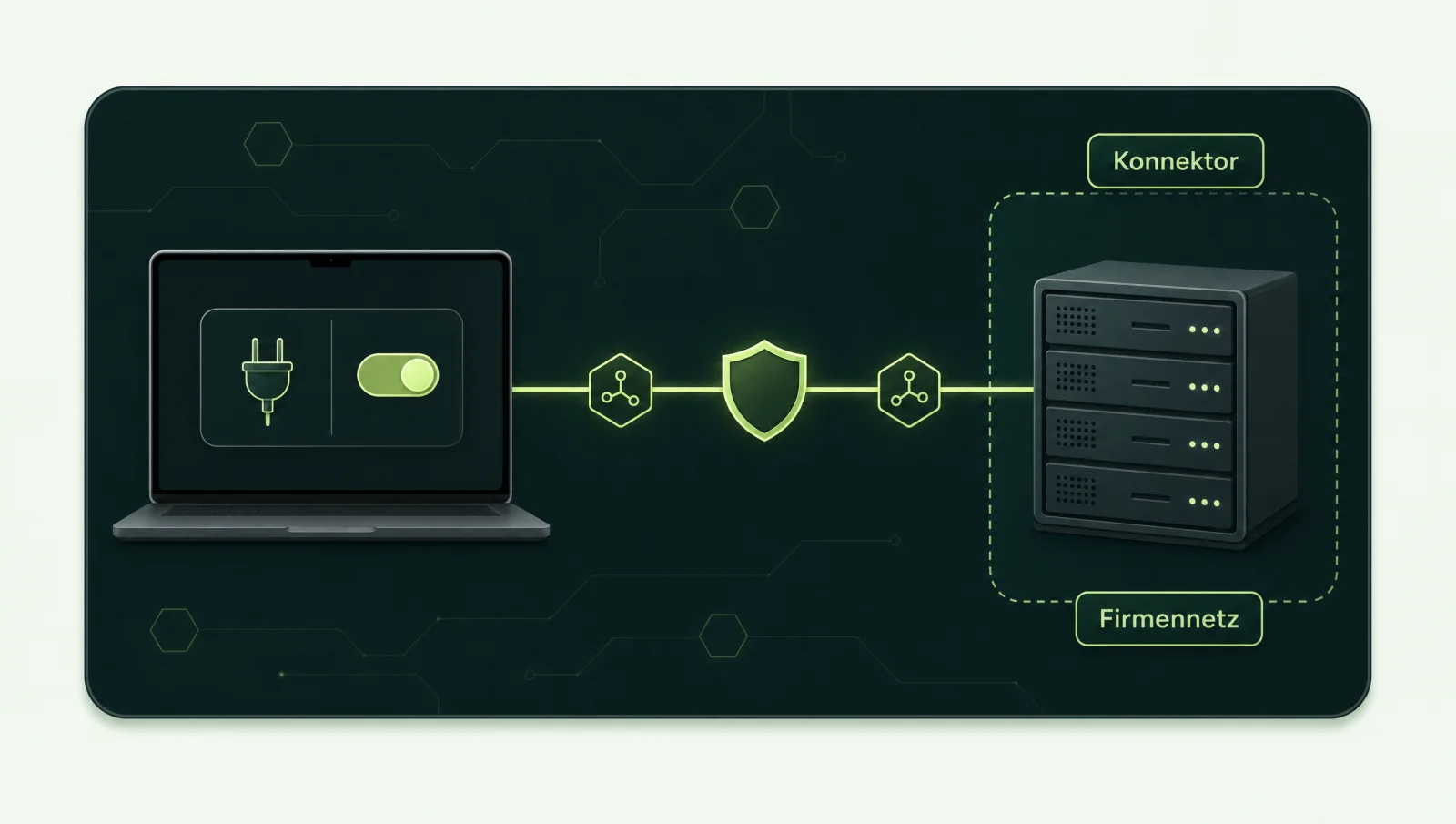
In the Claude interface, such an integration is called a connector. Behind every connector sits an MCP server that determines which tools Claude sees and what those tools are allowed to do. How the protocol works in general, with tools, resources and transports, is explained in our guide What is an MCP server?. This page is the practical guide for Claude itself.
To be clear about scope: Claude Code, the tool for software development, integrates MCP servers through its own configuration. We do not cover that here. This page is about Claude in the browser and in Claude Desktop, as your team uses it in day-to-day work.
Remote connector or local MCP server?
For businesses, a remote connector is usually the right route because it is managed centrally and works across all Claude interfaces; a local MCP server, by contrast, only runs in Claude Desktop on a single computer. The differences at a glance, each according to Anthropic, as of November 2026:
| Feature | Remote connector (remote MCP) | Local MCP server (Claude Desktop) |
|---|---|---|
| Where does the server run? | On the internet, at the provider or in your own infrastructure. Claude connects from Anthropic's cloud, even when your team uses Claude Desktop. | On the user's computer, launched by Claude Desktop. Not available in claude.ai in the browser. |
| Who sets it up? | Team: Owners and Primary Owners. Enterprise: additionally, people with a Custom Role that includes “Manage access to Libraries”. | The users themselves, via a configuration file or as a Desktop Extension (.mcpb). In Team and Enterprise, Owners control which extensions are allowed. |
| Plans | Free, Pro, Max, Ultra, Team and Enterprise; on the Free plan only one custom connector. | Claude Desktop; allowlist for Desktop Extensions in Team and Enterprise. |
| Network | The server must be reachable from Anthropic's IP ranges over the public internet, default port 443. Enterprise: MCP Tunnels as a research preview without a public endpoint. | Uses the computer's local network. |
| Authentication | OAuth or fixed headers such as an API key. Central sign-in via your identity provider is generally available. | Handled by each server itself; credentials are stored on the user's computer. |
| Administration | Added and removed centrally in the organisation settings; members then connect. | Per computer. Owners can upload their own .mcpb packages for the organisation. |
Sources: Custom connectors (remote MCP), Local MCP servers in Claude Desktop, Desktop Extension allowlist, Central sign-in, MCP Tunnels; all Anthropic, as of November 2026.
Our rule of thumb: if a tool is meant to serve several people with clear permissions, it belongs on a remote server. The local route suits single workstations and tests. Important: a local MCP server reaches internal systems through your computer's network, but whatever it returns to Claude as a result is still processed by the language model. A local server does not mean local AI.
How do you set up a custom connector in Claude Team or Enterprise?
In Claude Team, a custom connector is added by an Owner or Primary Owner; in Enterprise, also by a person with a suitable Custom Role. Members then connect individually or receive access through central sign-in. According to Anthropic (as of November 2026), the process runs in these steps:
- Clarify the role. In Team, only Owners and Primary Owners can add custom connectors. In Enterprise, people with a Custom Role that includes “Manage access to Libraries” can do so as well. According to Anthropic, Custom Roles are only available on the Enterprise plan.
- Create the connector. In the organisation settings under “Connectors”, add a custom web connector, give it a name and enter the URL of the remote MCP server exactly as the provider documents it, including the path.
- Choose the authentication method. Either OAuth, which according to Anthropic is recommended with Claude's published identity, or fixed request headers such as an API key or bearer token. The MCP specification describes a protected server as an OAuth 2.1 resource server.
- Make it available to members. Once it has been added, members find the connector in their list and connect themselves. According to Anthropic, they enable it in the chat per conversation via the plus icon at the bottom left of the input field under “Connectors”. That way Claude only sees what the respective person is allowed to see in the connected system, as long as the connector does not use a shared credential such as an API key.
- Check central sign-in. For Team and Enterprise, access can also be provisioned organisation-wide via your identity provider. According to Anthropic, sign-in via the identity provider is generally available, while the “Claude-issued auth” variant is still in beta.
Important with API keys: if the server authenticates with a fixed key, then according to Anthropic all members who use the connector reach the service with exactly that identity. In that case “each person only sees their own data” no longer applies, and without additional mapping an access in the target system may only be attributable to the shared account. For company data, OAuth with per-person permissions is the cleaner route.
Plan the URL, authentication method and scope of tools firmly before rollout, and test the connector first with an account that only sees test data. That way incorrect permissions show up before your whole team is connected.
How do you add a local MCP server to Claude Desktop?
You add a local MCP server to Claude Desktop either via the configuration file claude_desktop_config.json or as a Desktop Extension in the .mcpb format; both run on the user's computer and use its local network (Anthropic, as of November 2026).
Configuration file
In claude_desktop_config.json, developers specify which local server is launched with which command. This is the basic technical route, good for tests and single workstations, but it has to be maintained by hand on each computer. Anthropic explicitly describes Desktop Extensions as a simpler alternative to manually editing JSON files.
Desktop Extension (.mcpb)
A Desktop Extension is a package that can be installed with a click. For Team and Enterprise, Owners and Primary Owners can upload their own .mcpb packages and make them available to the organisation. According to Anthropic, the public directory no longer accepts new MCPB submissions; the format remains documented for internal and private distribution.
The official MCP documentation shows the basic structure of the file using the filesystem server as an example: under mcpServers, each server has a name, the launch command command and the arguments args (modelcontextprotocol.io, as of November 2026). On macOS the file is located in ~/Library/Application Support/Claude/claude_desktop_config.json, on Windows in %APPDATA%\Claude\claude_desktop_config.json.
{
  "mcpServers": {
    "filesystem": {
      "command": "npx",
      "args": [
        "-y",
        "@modelcontextprotocol/server-filesystem",
        "/Users/username/Desktop",
        "/Users/username/Downloads"
      ]
    }
  }
}
Prerequisites according to this guide: the example server launches via npx and therefore needs Node.js on the computer; adjust the folder paths to your user account. After saving, quit Claude Desktop completely and restart it, otherwise the configuration will not be loaded.
Which fields another server needs is stated in its own instructions. For company computers, a Desktop Extension is usually the better route because admins approve it centrally via the allowlist (Anthropic documentation).
Allowlist in Team and Enterprise: Owners and Primary Owners can specify which Desktop Extensions are allowed in the organisation. According to Anthropic, the allowlist is switched off by default; until an Owner activates it, members can install any extension from the directory. When it is switched on, extensions that are already installed may be removed from the computers. So agree the timing with your team.
Limits of the local route: a local server runs with the permissions of the user account under which it is launched. Authentication, permissions and logging have to be provided by the server itself; according to Anthropic, control over this lies with you. New versions can be distributed as .mcpb via the organisation administration, but they have to arrive on every computer. With many people involved, this means more operational effort than a central remote server.
What if the MCP server sits inside the corporate network?
If the MCP server sits inside the corporate network behind a firewall or VPN, Claude cannot reach it as a remote connector; that leaves three routes: make the server publicly reachable via port 443, request MCP Tunnels on Enterprise, or use a local server in Claude Desktop. According to Anthropic, remote connectors always connect from Anthropic's cloud, not from the user's computer. So the fact that you can reach the server from your laptop is not enough.
Publicly reachable via port 443
The server is reachable from Anthropic's IP ranges via HTTPS on the default port; according to Anthropic, Claude does not accept other ports in the URL. In practice this means a lean MCP server in a secured zone in front of your systems, with OAuth, fixed tools and an audit log. The business systems themselves stay internal.
MCP Tunnels (Enterprise, research preview)
For Enterprise, Anthropic offers MCP Tunnels on request. According to Anthropic, the MCP servers then do not need a public endpoint. A small tunnel service in your network establishes an outbound connection to Anthropic; inbound firewall rules are not required. Claude then sends the MCP requests over this connection to the internal server, and your members use it like any other custom connector. The tunnel itself does not authenticate: Anthropic recommends that every server requires OAuth. For the preview, Cloudflare is a sub-processor. This is a research preview, not a generally available service.
Local server in Claude Desktop
Local servers use the computer's network and can therefore reach internal systems that the computer can reach. This only works in Claude Desktop and comes with the limits on permissions and logging described above.
Which route fits depends on your network policy and on which data passes through the server. Bring your network team in early: clarifying the network question at the start avoids a finished integration later getting stuck at the firewall.
What are the risks of MCP in Claude?
The main risks are prompt injection via content from connected systems, shared credentials that undermine per-person permissions, and tools with write access that can do more than necessary. Anthropic itself warns: “Malicious MCP servers may include hidden instructions that try to make Claude perform unintended actions.” (Anthropic, as of November 2026). Anthropic also advises connecting only trusted servers, reviewing requested permissions and watching for changes in tool behaviour.
- Prompt injection: an email, a ticket or a document can contain instructions that Claude mistakes for a task. How to contain this is covered in the guide Prompt injection and AI security.
- Shared API keys: all members use the same identity. Per-person permissions and clean attribution in the audit log are lost.
- Write access: tools can create, change or delete data. According to Anthropic, the Microsoft 365 connector can also write and send. Start read-only and approve write tools one at a time.
- Data path: remote connectors run through Anthropic's cloud. According to the Anthropic Privacy Center, data is stored in the USA; by default, processing may be routed to selected countries in the USA, Europe, Asia and Australia unless otherwise agreed or instructed. Anthropic does not offer an EU storage region directly; for the API, the documentation lists “us” as the only storage region.
For data protection, this means: before connecting, check which personal data a tool returns to Claude, and limit the fields in the server. The framework with data processing, logging and a permissions concept is described in our guide MCP servers: security and GDPR. General guidance, not legal advice.
Ready-made connectors or your own MCP server?
First check whether a ready-made connector meets your requirements for functions, permissions and logging; your own MCP server becomes an option when there is no suitable connector for your system, for example for DATEV, Lexware Office or SAP, or when specific requirements remain unmet. Anthropic maintains a directory of connectors (as of November 2026). For each entry, check whether it only reads or also writes, and who operates it.
| Question | Ready-made connector | Your own MCP server (how we build it) |
|---|---|---|
| Which tools are available? | Determined by the provider. | You decide, tool by tool. |
| Who sees what? | Depends on the provider and authentication method. | We implement per-person permissions, derived from your identity provider and the business system. That is build work, not a property of MCP. |
| Protocol | At the provider, scope varies. | We log every call with person, tool, time and result in your environment. |
| Operation | At the provider. | In your infrastructure or with a hosting provider of your choice. |
| Typical systems | Widely used cloud services. | DATEV, Lexware Office, SAP, industry software, internal databases. |
For Microsoft 365 there is a connector from Anthropic. For work and school accounts, according to Anthropic, it needs one-time consent from a Global Administrator in Microsoft Entra; in Team and Enterprise, an Owner must additionally enable it in Claude. It works with delegated permissions, so Claude only sees what the respective person is allowed to see in Microsoft 365 anyway. Whether that is enough for you or whether your own server with a narrower set of tools is a better fit is compared in the guide MCP server for Microsoft 365.
For specialist software, the individual guides are worth a look: MCP server for DATEV and the DATEV MCP server comparison, MCP server for Lexware Office and MCP server for SAP. With SAP, the SAP API Policy belongs at the start, because it restricts AI access outside recognised routes. The MCP cluster gives an overview of all systems.
One advantage of your own server: a remote MCP server can in principle also be connected to other assistants such as Microsoft Copilot Studio, provided the transport (Streamable HTTP), authentication and the protocol features used are supported by the product in question. A local server for Claude Desktop cannot be reused in this way without changes. How Claude, ChatGPT and Copilot differ in a business setting is shown in the comparison of Claude, ChatGPT and Copilot.
Related guides
Want to connect Claude to a specific system? Tell us which system it is. We reply in writing.
Ask a questionFrequently asked questions
Which Claude plans support custom MCP connectors?
According to Anthropic: Free, Pro, Max, Ultra, Team and Enterprise, as of November 2026. On the Free plan, only one custom connector is possible. In Team and Enterprise, Owners and Primary Owners, and in Enterprise also people with a suitable Custom Role, add the connector for the organisation.
Does my MCP server have to be publicly reachable on the internet?
For a remote connector, yes: Claude connects from Anthropic's cloud, so the server must be reachable via HTTPS on port 443 from Anthropic's IP ranges. Exceptions are MCP Tunnels, which Anthropic offers for Enterprise as a research preview on request: there, a service in your network establishes an outbound connection to Anthropic. Local servers in Claude Desktop are another exception.
What is the difference between a connector and an MCP server?
The MCP server is the program that provides tools and data. The connector is the entry in Claude that points to this server and handles authentication. A connector does not work without a server, whereas a server can also be used by other assistants.
Can I use local MCP servers in claude.ai in the browser?
No. According to Anthropic, local MCP servers set up via claude_desktop_config.json or a Desktop Extension only run in Claude Desktop. For the browser, you need a remote connector.
Does every person see the same data through the connector?
That depends on authentication. If each person connects via OAuth themselves, Claude only sees what that person is allowed to see in the target system. If the connector uses a shared API key, then according to Anthropic all members reach the service with exactly that identity.
Does Anthropic store data from connectors in the EU?
According to Anthropic, it stores data in the USA; Anthropic does not offer an EU storage region directly. What your own MCP server stores and where it runs, on the other hand, is up to you. Whether that fits your case is best assessed together with the people responsible for data protection in your organisation. General guidance, not legal advice.
Can we connect DATEV, Lexware Office or SAP to Claude?
Yes, via your own MCP server that uses the system's official interfaces and only provides approved tools. With SAP, the SAP API Policy needs to be clarified first. Which route fits your case is something we discuss in the AI Check.
Does this guide also apply to Claude Code?
Only partly. Claude Code integrates MCP servers through its own configuration, which Anthropic describes in the Claude Code documentation. This page covers Claude in the browser and in Claude Desktop.
Which route fits your systems?
Briefly describe your system and you will receive a written assessment. In the AI Check (30 minutes), we also discuss whether a ready-made connector is enough or whether your own MCP server makes sense, and how it fits into your network; afterwards you receive a one-page recommendation.
Thank you, your enquiry has arrived.
We review your request and get back to you by email.
Prefer to talk directly? Book a 30-minute AI Check